.png)
Set Your Checkout Language
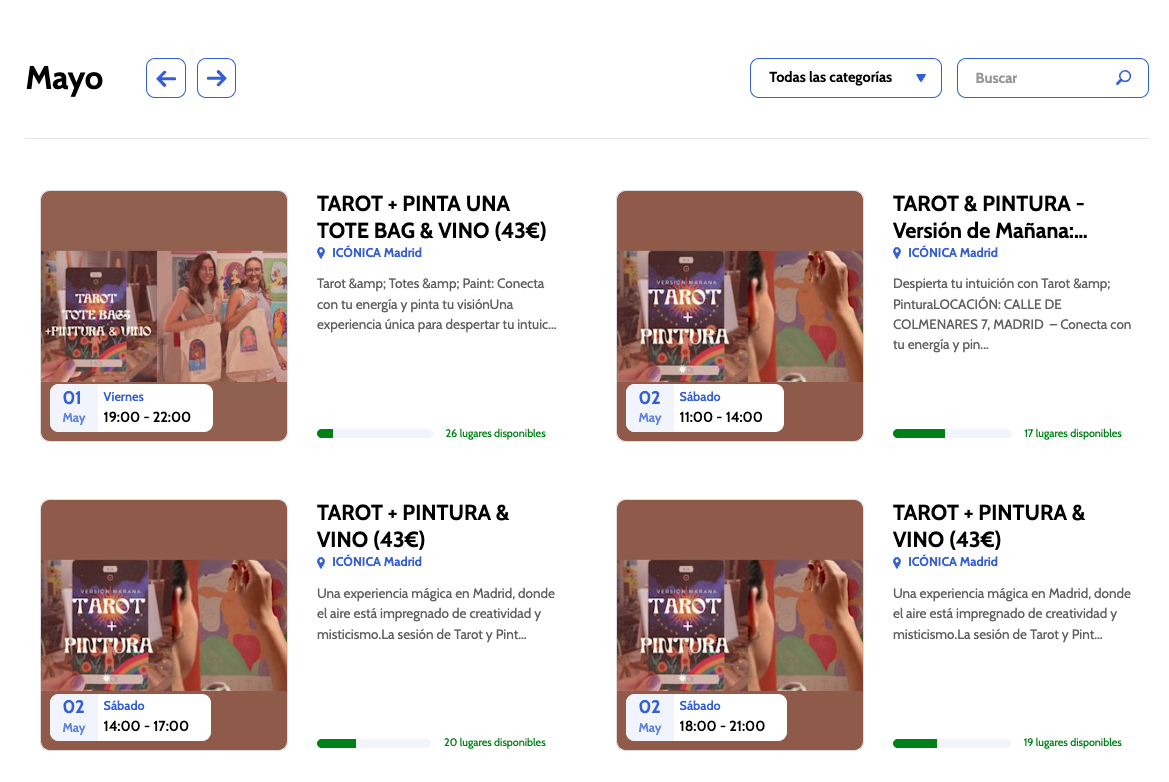
You can set Occasion to display in Spanish across all customer-facing surfaces — so customers who speak Spanish see your public calendar and booking pages in their language from the very first click.
In this article, you will cover:
How to Set Your Checkout Language
- Log into your Occasion workspace and click Settings in the sidebar.
- Select Account Settings, then click Business.
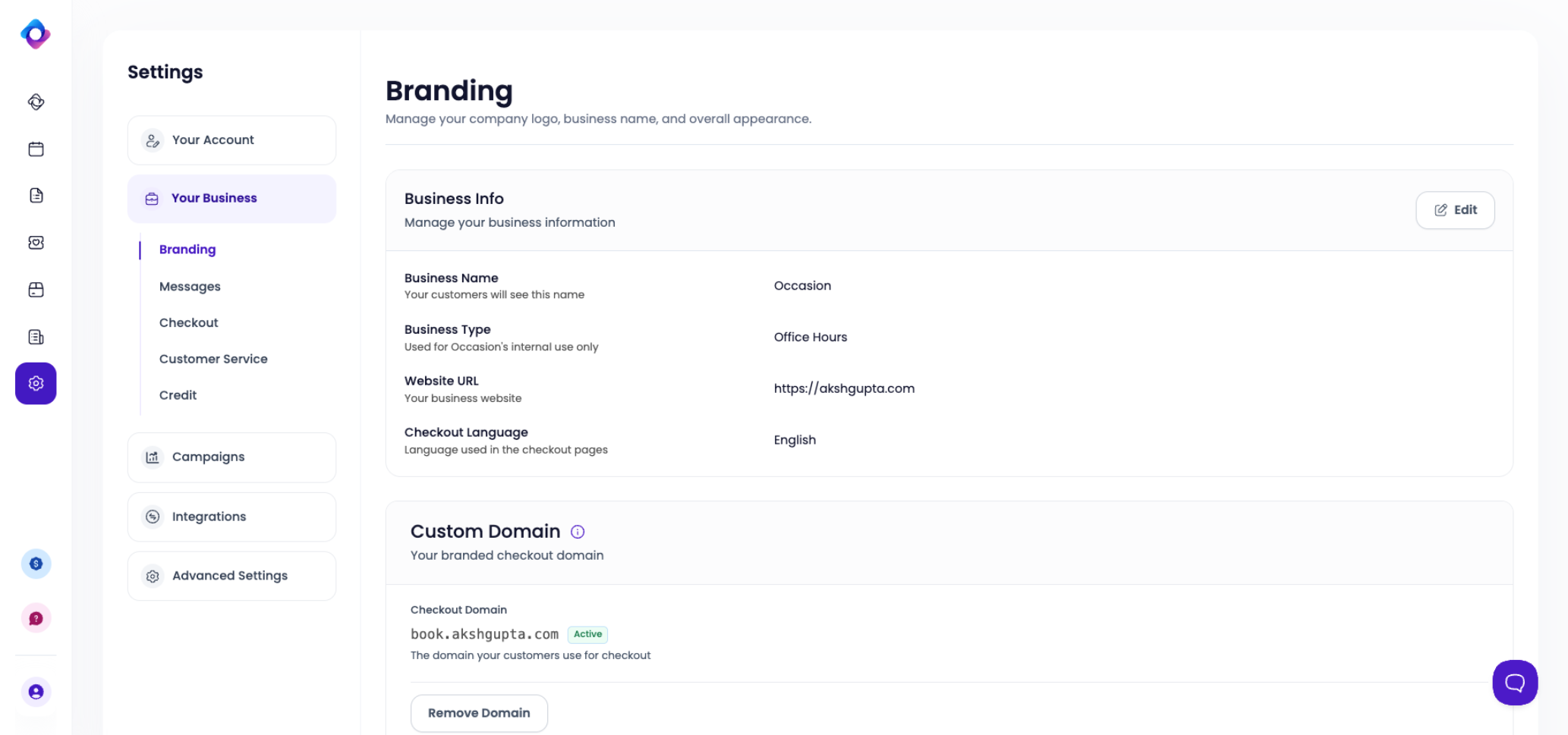
- Under Business Info, click Edit.
- Find the Checkout Language field and select your preferred language.
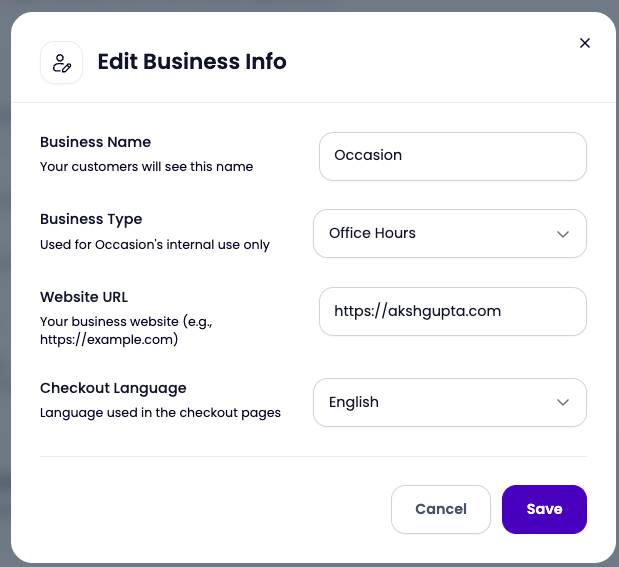
- Click Save.
What Changes When You Update This Setting
The language setting applies to two surfaces your customers see:
- Public calendar — the booking calendar embedded on your website displays in the selected language.
- Checkout and booking pages — the pages customers move through when completing a booking display in the selected language.
Both update automatically once you save. Your Occasion workspace — the backend your team uses — stays in English regardless of this setting.
FAQs
- Which languages are supported? Currently, English and Spanish are supported.
- Does this affect my Occasion workspace? No. Only customer-facing surfaces are affected. Your team's workspace stays in English.
- Will existing bookings be affected? No. The change only applies to new visitors going forward.