.png)
Create Vacation Modes
Vacation mode allows you to block all available time slots at a specific venue for a selected date or date range. This is useful when your venue is closed for holidays, renovations, staff training, or other events that prevent normal operations.
In this article:
- How Vacation Mode Works
- Enabling Vacation Mode
- Editing or Deleting Vacation Modes
- Common Use Case
- FAQs
How Vacation Mode Works
When you enable vacation mode for a venue:
- All available time slots at that venue during the vacation period are automatically blocked from bookings
- Your staff will see affected time slots as "Blocked" and your customers won't be able to purchase them
- Already-booked orders are not affected — only prevents new bookings during the vacation
- The vacation mode applies to all listings at that venue during the specified dates
Note: Vacation mode is venue-specific. If you have multiple venues, you'll need to create separate vacation modes for each one.
Enabling Vacation Mode
- Go to Settings > Account Settings > Workspace Calendar > Vacation Mode in your Occasion Workspace.
- Click Add Vacation
- Enter a Vacation Name (e.g., "Holiday Break," "Annual Maintenance")
- Select the Venue to close
- Set the Start Date & Time when the vacation begins
- Set the End Date & Time when the vacation ends
- Click Save
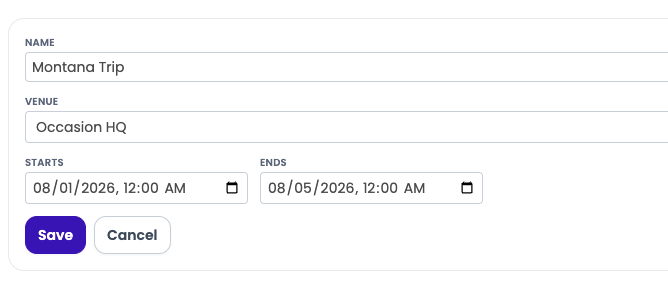
The vacation mode will take effect immediately. Any time slots that fall within this date range will be blocked and unavailable for booking.
Editing or Deleting Vacation Mode
You can update or remove vacation modes at any time:
- Edit: Click the vacation mode from your list, update the dates or name, and save
- Delete: Click the vacation mode and select Delete to remove it — availability will immediately return to normal
Past vacation modes older than 2 years are automatically hidden from your list, but you can still view and manage recent ones.
Common Use Cases
- Holidays: Block time slots during New Year's, Thanksgiving, Christmas, or other holidays when your venue is closed
- Maintenance: Close your venue for cleaning, renovations, or equipment repairs
- Private Events: Reserve your entire venue for a private event or staff gathering
- Training: Block time for staff training or onboarding sessions
- Seasonal Closures: Close during off-season months if your business operates seasonally
Frequently Asked Questions
Will existing bookings be canceled?
No. Vacation mode only prevents new bookings. Already-booked orders at that venue during the vacation period are not affected.
Can I create a vacation mode for multiple venues at once?
No. Each vacation mode is tied to a single venue. If you need to close multiple venues, create a separate vacation mode for each one.
Can customers see the vacation mode?
Customers don't see a "vacation" label — they simply see affected time slots as "Blocked" and unavailable for purchase.
What happens if I delete a vacation mode?
Deleting a vacation mode immediately makes those time slots available again for booking.
Can I close just one listing at a venue, not the whole venue?
Vacation mode affects all listings at a venue during the specified dates. If you need to close just one listing, you can manually disable individual time slots instead.