.png)
AI Copywriter
The AI Copywriter helps you write better messages to your customers — without needing to be a professional copywriter. Whether you're drafting an Event description, SMS, an email, or a waitlist message, Copywriter gives you one-click suggestions to improve your writing on the spot.
In this article:
Where to Find It
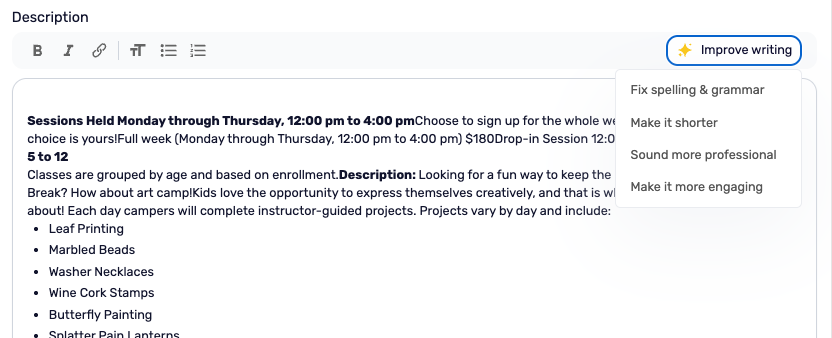
Look for the magic wand icon (✨) in the text editor toolbar. You'll find it in:
- Listing Descriptions - Event descriptions
- Message Templates - Email and SMS templates for confirmations, reminders, and more
- Roster Messages - Messages sent to confirmed attendees
- Waitlist Messages - Messages sent to customers on your waitlist
How to Use It
- Write your message — Draft your message in the text editor as you normally would.
- Click "Improve writing" — Click the magic wand icon (✨) in the editor toolbar.
- Choose an improvement type — Select from the following options:
- Fix spelling & grammar — Clean up typos and grammatical errors
- Make it shorter — Trim it down (great for SMS)
- Make it friendly — Add warmth and approachability
- Sound more professional — Elevate the tone for formal communication
- Make it more engaging — Increase interest and clarity
- Add urgency — Create a sense of timeliness
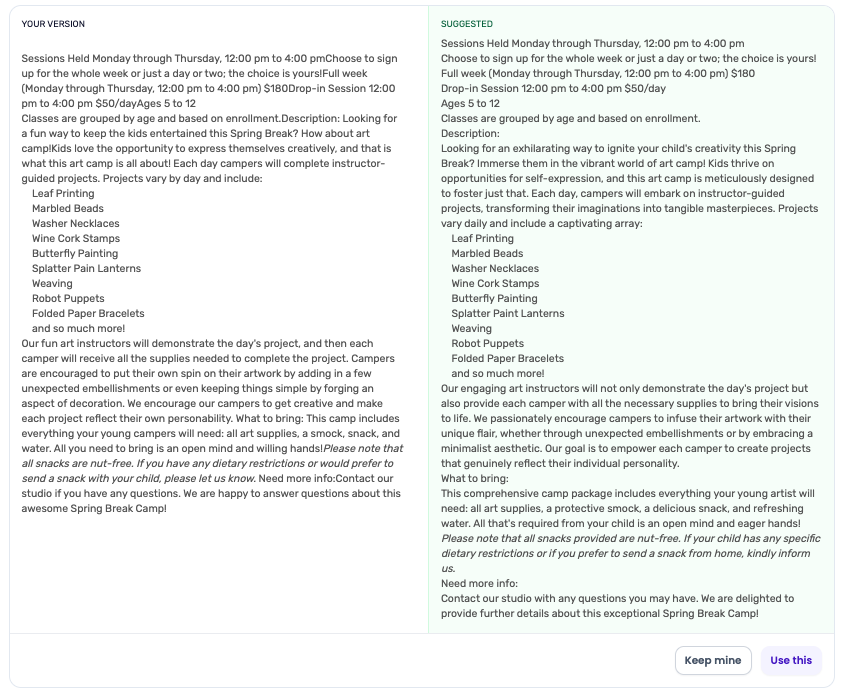
- Review the suggestion — You'll see your original message alongside the AI-improved version.
- Accept or keep your original — Click Use this to apply the suggestion, or Keep mine to go back to your original.
Pro-tip: You can run Copywriter multiple times on the same message. Try "Fix spelling & grammar" first, then "Make it more engaging."
Things to Know
- Copywriter works best when you have a complete draft — a few full sentences gives it more to work with.
- Personalization tokens (like
{customer_name}) are preserved in the suggested version. - Always review the suggestion before applying it — AI can occasionally miss your brand's specific tone or context.
- If the suggestion doesn't feel right, try a different improvement type or stick with your original.
Troubleshooting
Getting an error message?
If you see "Couldn't generate content. Please try again," the AI service may be temporarily unavailable. Wait a moment and try again.
The suggestion doesn't sound like me?
That's normal. You can manually edit the suggested text, try a different improvement type, or keep your original. The goal is to give you a starting point — not replace your voice.